Program Accounts
Last updated: July 16, 2026
The Program Account organization type is designed to help organize multiple client accounts into one program or pool.
What can I do on the Program Accounts page?
Export a combined SOV in Excel or model-ready formats (RMS, AIR)
Create a Snapshot that applies to all Program Accounts
View previous Snapshots
View total number of properties and total TIV
Manage which users can view the Program Accounts page
How do I create a Program Accounts page?
First create the client accounts you want in the Program, if they don't already exist. You can do so by clicking "Create Client Account" in top right of the Accounts Home Page.
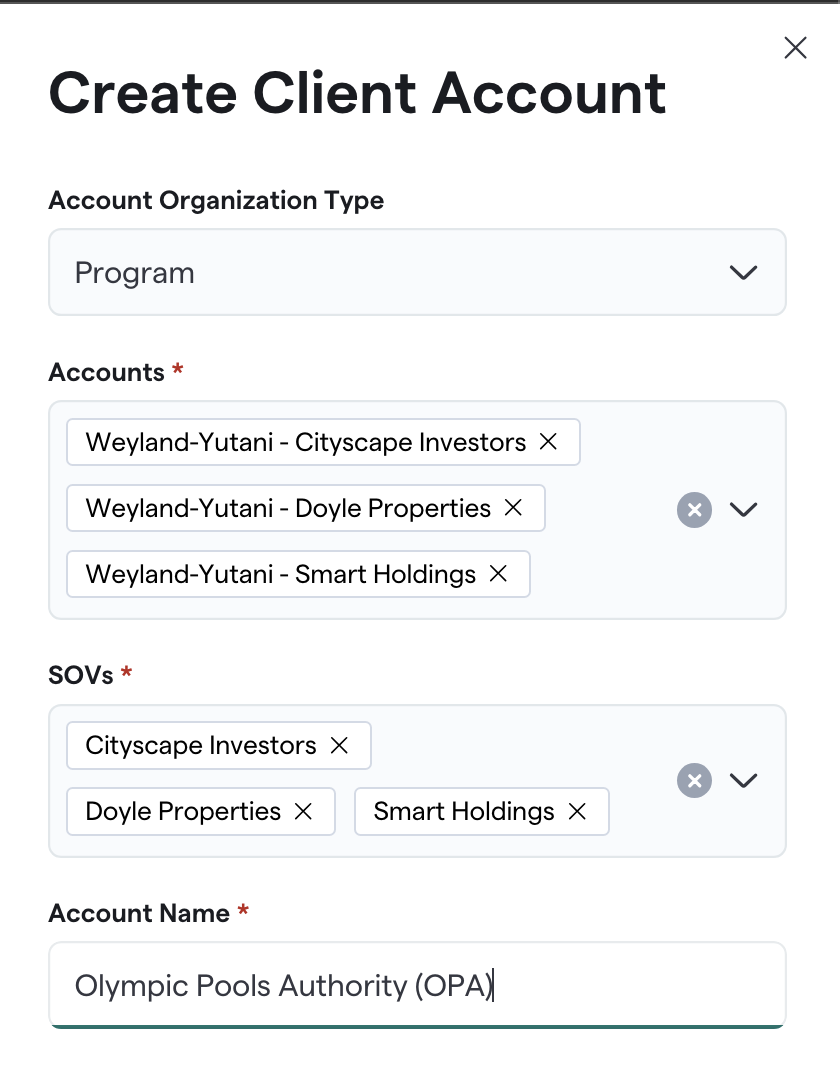
When the underlying client accounts are created, click "Create Client Account"
Select "Program" in Account Organization Type
Then select the accounts you'd like to see in the program. They must already exist
Select which SOVs from the accounts you've selected you'd like to be included into the Program
Name your Program Account, and enter in the relevant information and hit "Create"
How can I add new client accounts to a Program Account?
Create the client account in the Accounts Home Page and upload their SOV.
Message support@archipelago.com to let us know to add the client account to the Program Account. ie "Please add Weyland-Yutani - Sun Eater Properties to the Olympic Pools Authority"
You'll then receive a message from the Archipelago support team, acknowledging the request and a message when it is completed.