Export data
Last updated: July 9, 2026
Export data from a portfolio to share with others or use in processes outside of Archipelago.
Export Archipelago data for Excel
Navigate to the portfolio you want to export data for.
In the Latest drop-down menu, specify the date you want to view data for. You can download data for the latest set of portfolio data or data from a previous Snapshot.
Apply any filters if you want to narrow down the data in your export.
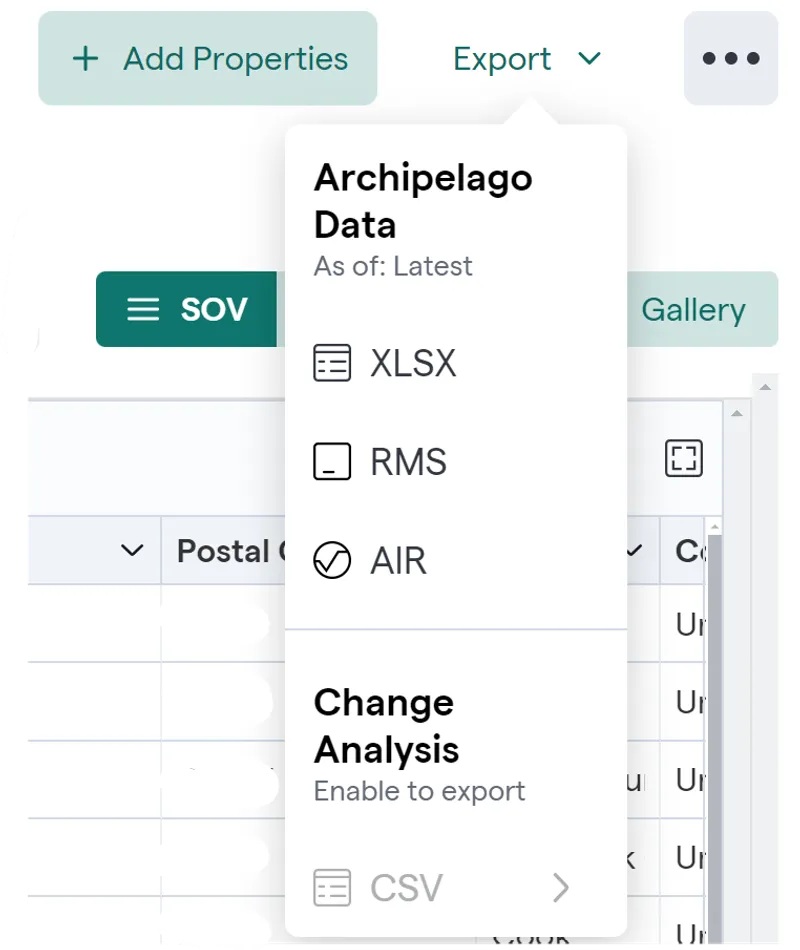
Click the Export drop-down.
Choose the export option that suits your needs:
Archipelago data > XLSX—Export all property data as of the date you specified.
Loss Data > XLSX—Export only data related to losses your properties have experienced as of the date you specified.
Specify whether you want the export to include all the properties in the SOV or filtered properties only, and click Download.
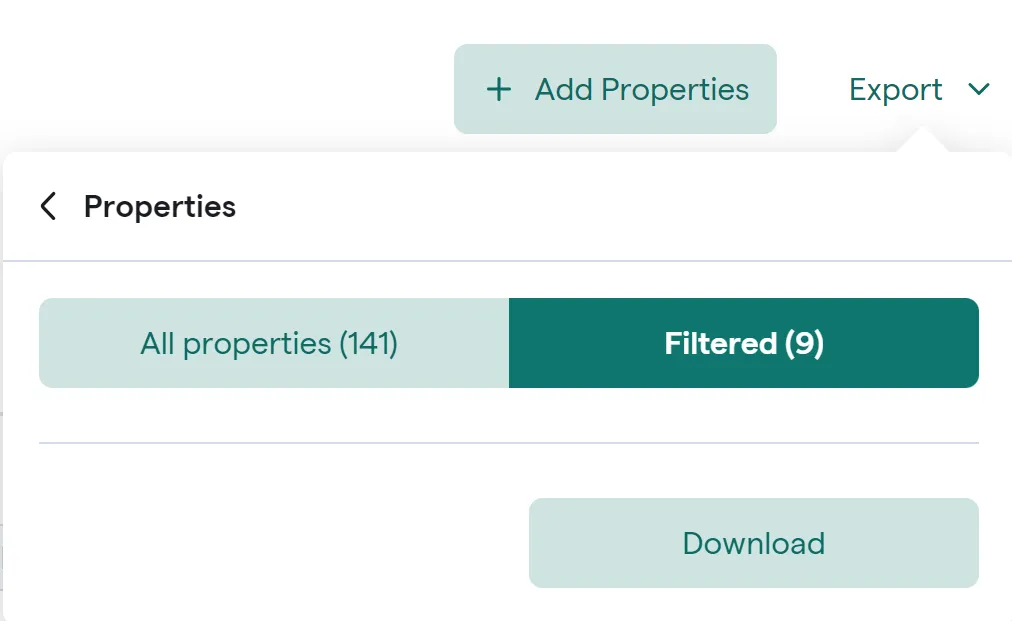
All properties—Exports all property data in the SOV, regardless of any filters you have applied.
Filtered—Exports only properties that match any filters that are currently applied to the SOV.
A download of the export you choose will automatically begin.
Export Archipelago data as RMS or AIR data
Export Archipelago data in an RMS or AIR format to help with catastrophe modeling.
Archipelago uses its own data schema to define and process your data. When you choose this export option, Archipelago provides a .csv file that maps your Archipelago data to the RMS or AIR schema for optimized catastrophe modeling. You can export data to these formats on demand to create a high-quality input data set for catastrophe modeling.
Navigate to the SOV you want to export data for.
In the Latest... drop-down menu, specify the date you want to export data for.
Click Export > RMS or Export > AIR.
A download of the export you choose will automatically begin.